
Direct answer. For same-size contact sheets, the macOS print preview's pages-per-sheet option works for free. For mixed sizes on one sheet or several copies of the same photo without duplicating library items, use a layout workspace like PrintExactly that lets every photo item have its own physical size and copy count.
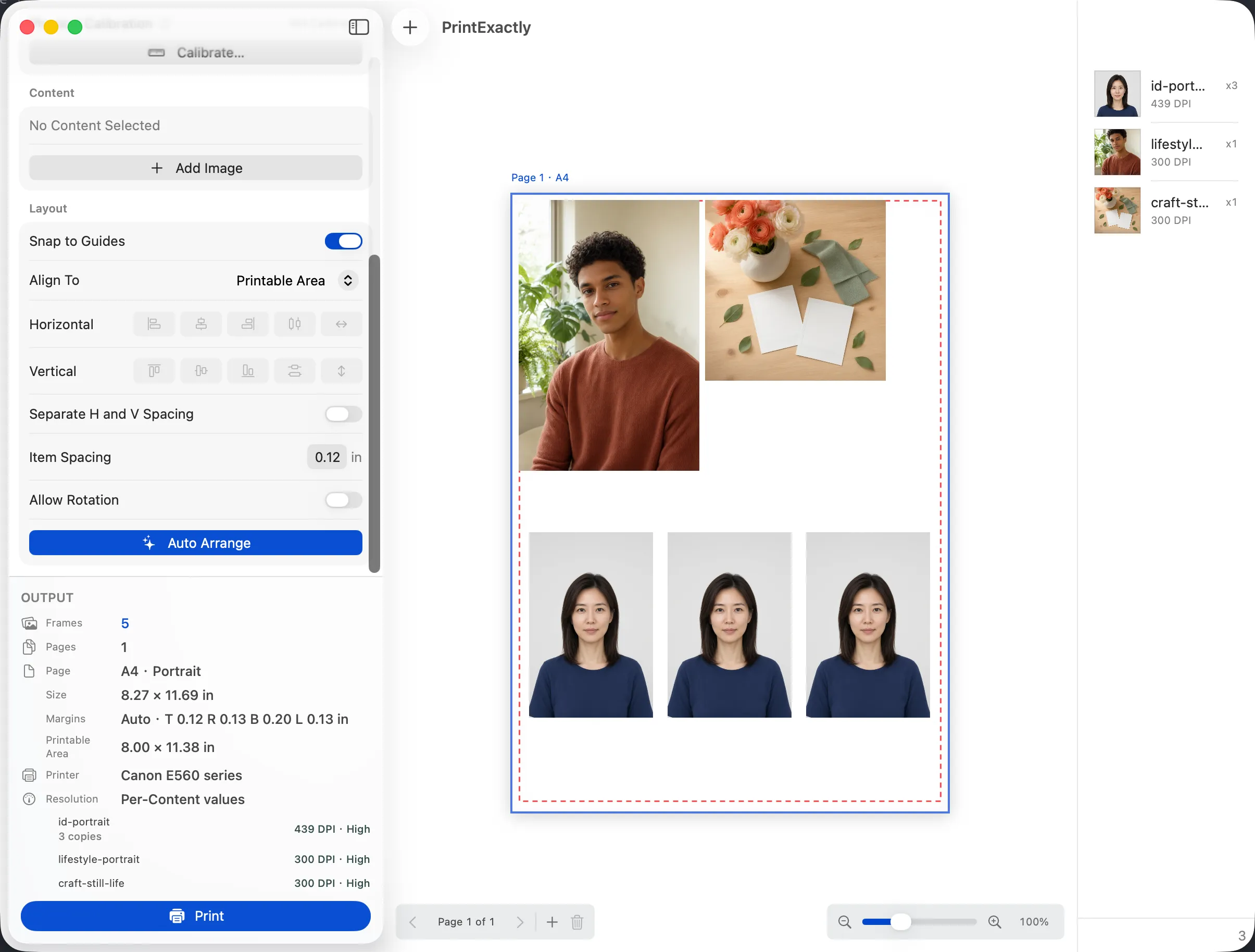
What "multiple photos on one page" actually means
There are really three jobs hiding behind this query:
- Same-size N-up — every photo is, say, 4×6 inches, and you want several per sheet.
- Several copies of one photo — eight wallet prints of the same image, no duplicates in your library.
- Mixed sizes on one sheet — a 4×6 plus a 5×7 plus two 2×2 plus three wallet prints, all on the same sheet.
Generic Mac print workflows cover (1) cleanly and handle (2) with some friction. (3) is what they were not designed for — that is where a layout workspace like PrintExactly earns its keep.
Generic Mac print vs measured mixed-size layouts
| Need | Generic Mac print | Measured mixed-size layout |
|---|---|---|
| Same-size contact sheet (all 4×6, all wallet, etc.) | Yes — pages per sheet or copies per page in the print dialog | Yes — use a same-size layout |
| Same photo, many copies on one page (no library duplicates) | Possible — copies per page in the print dialog, with extra steps for source reuse | Yes — set copies per item |
| Different physical sizes on one sheet | Limited — every cell ends up the same physical size | Yes — designed for it |
| Automatic paper-saving pack across sheets | No | Yes — Auto Arrange |
| Printer printable-area warning while arranging | Print-dialog level | Layout-level (before pressing print) |
| Bleed, cut marks, and trim outline | No | Yes — workspace options |
How to print multiple photos on one Mac page
- Decide whether all photos need the same size. If every photo is the same size (for example, all 4×6), the macOS print preview's pages-per-sheet option can do this for free. If any photo needs a different size on the same sheet, you need a layout workspace like PrintExactly.
- For same-size sheets, use the macOS print preview. Open each image in a tool that exposes the macOS print dialog, set copies per page or pages per sheet, and confirm Scale to Fit is off and Scale is 100%.
- For mixed sizes, use a layout workspace. Open PrintExactly, set the paper to what is loaded in the printer, drop the photos on the sheet, and assign each item its own width and height. Set copies per item rather than duplicating photos in your library.
- Pack and finish. Use Auto Arrange if you want the layout packed across multiple sheets with compact spacing. Add bleed, crop marks, or trim outlines to photo items you plan to cut out.
- Verify the layout and print at 100%. Check effective DPI, printable-area clipping, and 100% scale in the macOS print panel. PrintExactly warns when the active printer, paper, or margins differ from what you arranged.
Same-size N-up is essentially a solved problem on Mac — the macOS print preview's pages-per-sheet option covers it well. Mixed-size sheets are the unsolved one, and that is the gap PrintExactly is built around.
— PrintExactly feature notes
When the same-photo-multiple-copies workflow matters
School and wallet photo packages are the most common example: you want eight wallet prints of one portrait, four 2×2 of another, and two 4×6 of the family shot — on the same sheet, at the real physical sizes you ordered. The macOS print dialog supports copies per page, but every cell is still the same size, and you still need a measured layout to put different sizes on the same sheet.
Paper-saving mixed-size layout
Auto Arrange packs items across as many pages as the job needs, using the current printable area, finishing footprint, and spacing settings. A 5×7 plus several smaller photos can share a page when their combined footprints fit.
How this fits the broader Mac workflow
For everyday single-photo printing and same-size contact sheets, the macOS print dialog and the macOS print preview are the right tool. The moment you need each photo on the sheet to have its own physical size, its own copy count, or a printer-aware layout check, you need a dedicated Mac layout tool. The generic workflow guide Choosing a photo printing workflow on Mac walks through the decision.
Frequently asked questions
How do I print multiple photos on one page on Mac?
For same-size sheets, use the macOS print preview's pages-per-sheet option or copies per page. For mixed sizes on one sheet, use a layout workspace like PrintExactly that lets each photo have its own width and height.
Can I print the same photo multiple times on one page?
Yes. The macOS print dialog supports copies per page for the same source image. In PrintExactly you can set copies per item without duplicating the photo file.
Can I mix photo sizes like 4×6 and 2×2 on the same Mac sheet?
Yes, but same-size contact sheets keep every cell the same size. You need a tool that allows each photo item to have its own physical dimensions. PrintExactly is built for that workflow.