Direct answer. For a reusable single-page ID photo layout, import one existing photo, make six current Frames with duplicate or Copies controls, arrange them on the Page, then choose Save as Preset... in the right-side Output summary or from File. Later, prepare the current photos/Frames first and apply the preset from the Inspector's Preset picker above Page, or from File > Apply Preset. Presets save Page setup and Frame geometry, not photos or their Content crop, fit, zoom, rotation, or flips; applying one does not make extra copies.
What a reusable layout contains
Think in the app's Page → Frame → Content order. A preset captures physical Page dimensions and orientation, margins, and layout spacing. It also saves ordered Frame positions and sizes, including borders, bleed, and cut marks. The photos themselves and each photo's Content settings — crop, fit, zoom, rotation, and flips — are not part of the preset. Applying one changes the Page and Frame layout while leaving current Content adjustments alone.
Example: ID sheet - 6 copies
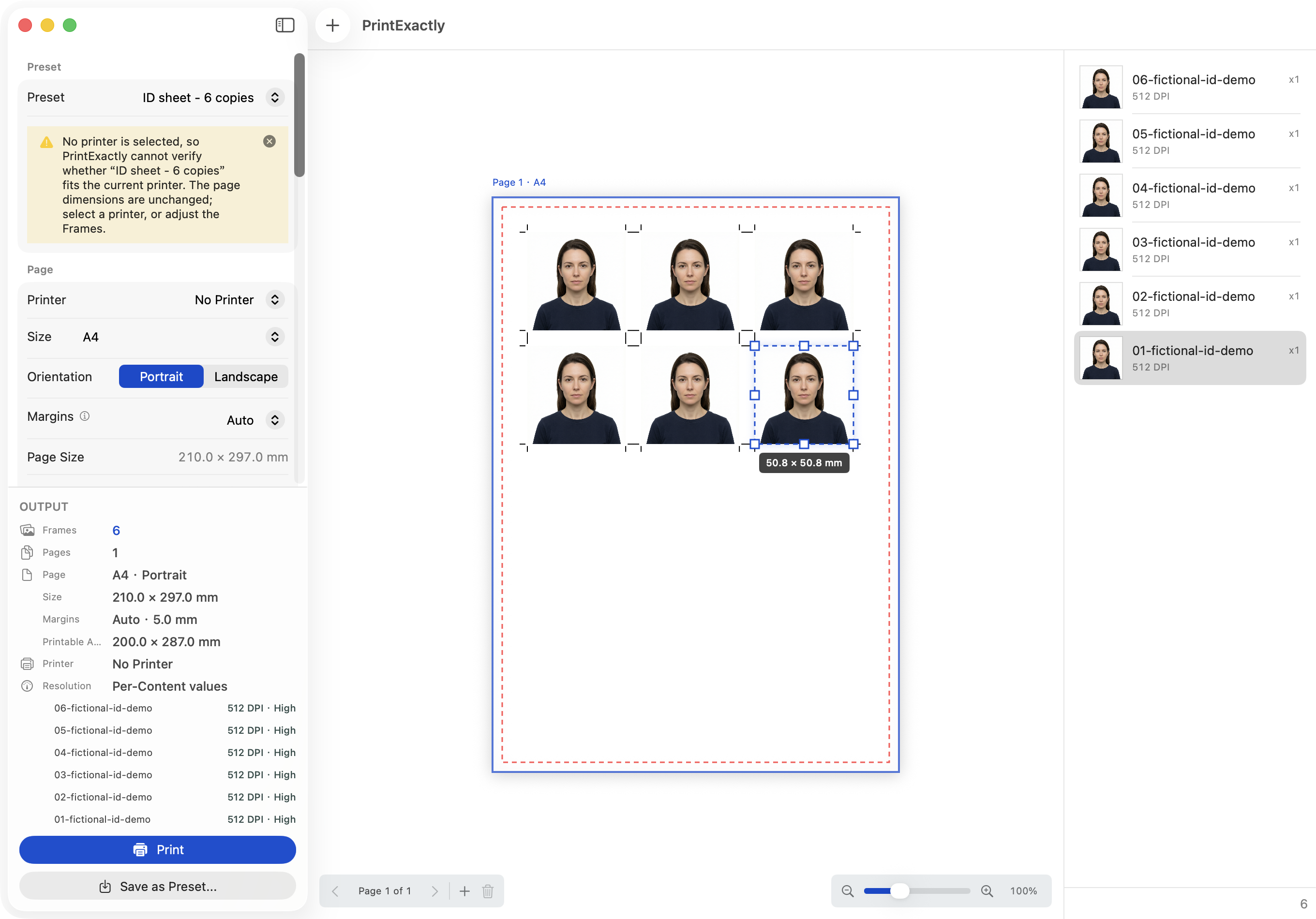
Start with an existing photo. Use duplicate or Copies controls to create six Frames, then arrange six 2 × 2 in (50.8 × 50.8 mm) Frames in three columns and two rows on an A4 portrait Page. Use 8 mm gaps between Frames and enable crop marks. Save this single-page arrangement as ID sheet - 6 copies. The 2 × 2 in size is only a layout reference, not a universal government requirement; for the layout steps behind that one Frame, see how to print a 2 × 2 photo on Mac, which covers layout printing rather than passport compliance. For a real application, use a real approved photo and check current authority requirements; PrintExactly does not verify photo compliance, and AI-generated demo portraits are not for real passport or ID use.
Save, update, or make a variation
The primary Save as Preset... action is in the right-side Output summary; the same command is available under File > Save as Preset.... For your first preset, the save sheet offers Create Preset. Enter a useful name such as ID sheet - 6 copies and save it. This keeps a reusable arrangement for one Page with multiple copies of an existing photo.
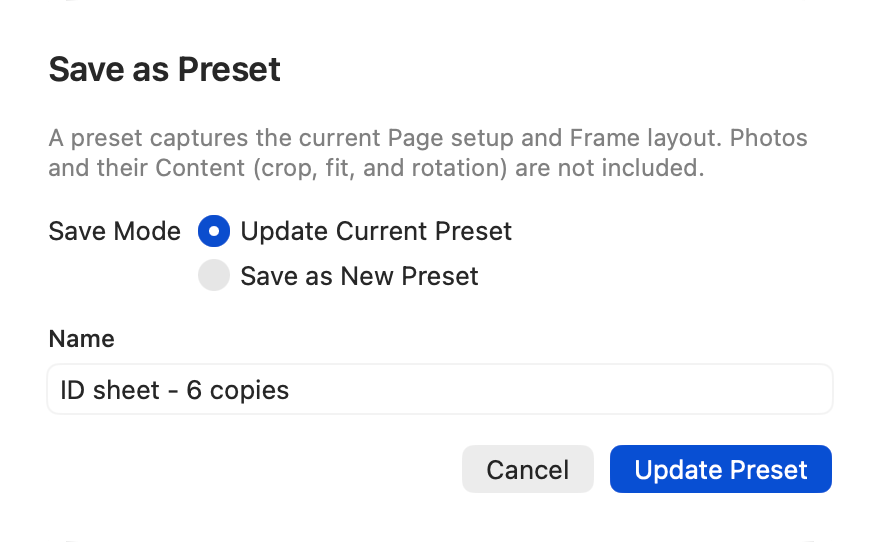
When a preset is already selected, the save sheet lets you choose Update Current Preset or Save as New Preset. The matching action button is Update Preset or Save New Preset. Update when the existing layout should change; save as new when you want to preserve it and keep a variation.
Apply and check a preset
For reuse, import and prepare the six current Frames first. The Inspector's Preset picker is above Page controls. Select a saved layout there, or open File > Apply Preset and choose a name. Ordered Frame slots receive the existing photos in order and preserve each photo's Content settings; the preset does not create or duplicate photos. After applying, inspect the Page, Frames, and printable area. The app warns when saved paper is unsupported by the selected printer, the printable area is unknown, or Frames could be clipped. A warning is a prompt to check compatibility — the app does not switch printers or resize the layout to fit.
Applying a preset is undoable with Undo. The None choice clears which preset is selected and tracked; it is not an undo command and does not reverse the already-applied layout. To rename or delete saved layouts, choose File > Manage Presets....
The same saved layout supports several common jobs. Prepare the current Frames first, then apply the preset to:
- Repeat one photo across a Page with Copies or Fill Page.
- Mix several physical sizes on one sheet.
- Print photos at exact physical dimensions.
- Repeat a school or wallet package with several fixed sizes.
- Save a 2 × 2 photo sheet for a later job.
Each reuse keeps its own Content crop, fit, zoom, rotation, and flips; the preset does not create photos, copies, or placeholders.
The 7-step preset workflow
- Import and prepare the photos for this print job. For a six-copy sheet, import your existing photo and use duplicate or Copies controls to create six current Frames before saving or reusing the layout. Presets store Frame slots, not photos, and applying one does not generate or copy photos or create empty placeholders.
- Set up the Page and arrange its Frames. Choose the intended printer and paper, then set the Page orientation, margins, and spacing. As one example, arrange six 2 × 2 in (50.8 × 50.8 mm) Frames in three columns and two rows on an A4 portrait Page, with 8 mm gaps between Frames and crop marks enabled. This is a layout example, not a universal government photo rule.
- Save the layout as a named preset. Use Save as Preset... in the right-side Output summary or File > Save as Preset.... The first save offers Create Preset. Give the layout a recognizable name such as ID sheet - 6 copies, then save it.
- Choose how to save later changes. With a preset selected, Save as Preset... opens the same sheet with Update Current Preset or Save as New Preset. The button reads Update Preset or Save New Preset for those choices. Updating replaces that preset's layout; saving new keeps the existing one too.
- Reuse the layout with another existing photo. Import and prepare the six current Frames first, then choose the preset from the Preset picker above the Page controls in the Inspector, or use File > Apply Preset. Ordered Frame slots receive photos in order and keep their Content adjustments. Applying a preset does not create or duplicate photos and does not switch the selected printer.
- Review the Page and printer warnings. Check the selected paper, printable area, and every Frame after applying. PrintExactly warns when the printer does not support the saved paper, its printable area is unknown, or saved Frames may be clipped. It does not resize the layout to fit; choose compatible paper or adjust the layout yourself.
- Undo or manage saved presets. Applying a preset is undoable with Undo. Choosing None clears the selection and tracking of the active preset; it does not undo a layout already applied. Use File > Manage Presets... to rename or delete saved presets.
Frequently asked questions
What does a PrintExactly layout preset save?
A preset saves physical Page dimensions and orientation, margins and spacing, plus ordered Frame positions and sizes, borders, bleed, and cut marks. It does not save photos or per-photo Content adjustments such as crop, fit, zoom, rotation, or flips.
Will applying a preset change my photos or their crop?
No. Existing photos map to the preset's ordered Frame slots, while each photo's Content adjustments remain unchanged. Import and prepare the photos first; a preset applied with no photos does not make empty placeholders.
What happens if I have more photos than Frame slots?
Photos map through the ordered Frame slots, and when there are more photos than slots, PrintExactly repeats the layout across additional Pages. The selected printer is not changed.
Does a preset make the layout fit my printer's paper?
No. PrintExactly warns about unsupported paper, an unknown printable area, or Frames that may be clipped, but does not resize the Page or Frames to fit. Review the warning and adjust the paper or layout yourself.
Does choosing None undo an applied preset?
No. None clears the current preset selection and tracking, not the Page and Frame layout already applied. Use Undo to reverse an application.