What mixed-size layouts actually fix. PrintExactly separates the Page, each Photo Frame, and its Image Content. Generic Mac print workflows can produce a same-size contact sheet, but they keep every Frame the same physical size. PrintExactly lets each Frame keep its own physical dimensions while its Content fits or crops independently.
Why mixed-size layouts are the everyday Mac photo job
Most photo jobs are not a single size. A scrapbook page wants 4×6 plus wallet inserts. A school package wants eight wallet copies plus two 2×2 plus one 5×7. A passport photo job wants a single 2×2 alongside a 35×45 mm and a 33×48 mm. Same-size contact sheets handle one fixed size. PrintExactly handles the whole sheet, mixed sizes and all.
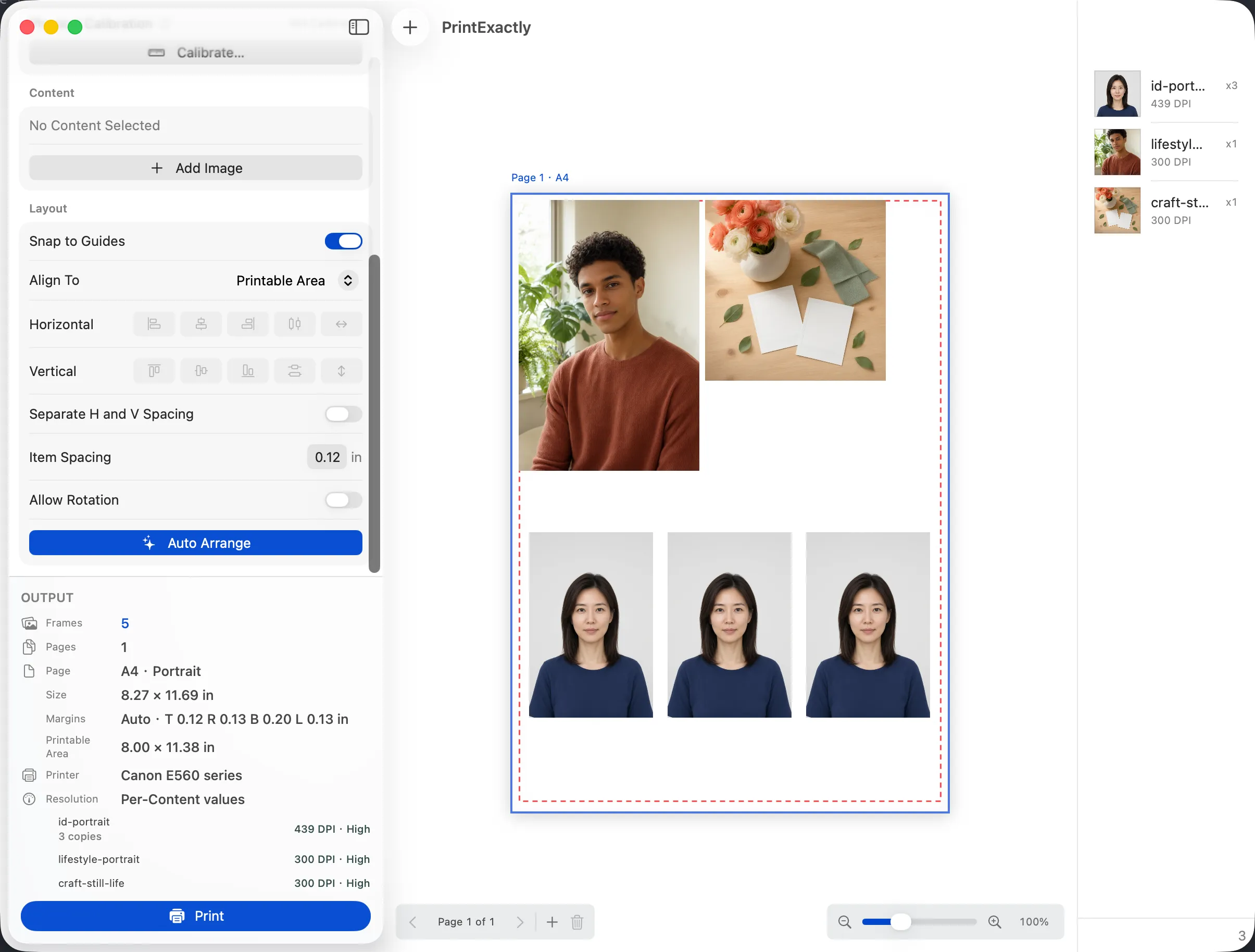
How a mixed-size layout is built
- Pick the paper — A4, US Letter, or whatever your printer has loaded. The sheet is sized to match.
- Add photos and assign a size to each — every photo item gets its own width and height in mm, cm, or inches. Presets cover 2×2, wallet, 4×6, 5×7, and 8×10; custom sizes work too.
- Arrange, align, and space — drag items by hand, snap to guides, align and distribute, and control spacing independently of the photo size.
- Set copies per item — need four 2×2 portraits of the same photo? Set copies = 4 on that item, no library duplicates required.
- Pack the page — use Auto Arrange to pack items across as many pages as needed, or keep one sheet per logical job.
- Add finishing — add bleed, crop marks, and trim outlines to the selected photo items, including custom sizes.
- Verify — check effective DPI, printable-area clipping, and 100% scale before sending to the macOS print panel.
Mixed-size sheets usually beat same-size N-up contact sheets on paper use, because each photo is sized to its real physical footprint instead of being padded into a uniform grid.
— PrintExactly feature notes
What makes PrintExactly different on Mac
When mixed-size layouts are the right tool
- School or wallet photo packages with two or more sizes on one sheet.
- Scrapbook pages with 4×6 plus wallet and 2×2 inserts.
- Frame-sized prints plus small reference prints on the same sheet.
- Printable gifts and crafts where sizes need to match physical items.
- Existing-photo passport or ID layouts that mix 2×2, 35×45, and 33×48 next to each other.
When a generic Mac print workflow is enough
If every photo on the sheet will be exactly the same size and you do not need printable-area checks during layout, the macOS print preview's pages-per-sheet option is a fine free choice. The guide Choosing a photo printing workflow on Mac walks through the difference honestly.
Frequently asked questions
Can I mix different photo sizes on one Mac sheet?
Yes. PrintExactly lets you place photos with different physical dimensions on the same Mac print sheet — 2×2, wallet, 4×6, 5×7, and custom dimensions up to 2,000 mm per side can sit together with controlled copies, spacing, and alignment.
Can I print a 2 × 2 photo and a 4 × 6 photo on the same sheet?
Yes. In PrintExactly, set one item to 2 × 2 in (51 × 51 mm) and another to 4 × 6 in (102 × 152 mm), then place both on the same sheet. Auto Arrange can pack the layout while preserving each item's physical dimensions.
Does PrintExactly read the Mac printer's printable area?
PrintExactly reads the printer-reported printable area for the active Mac printer and flags any photo that would be clipped, so you can adjust the layout before printing.
Will mixed-size sheets waste less paper than a contact sheet?
Auto Arrange packs items across as many pages as the job needs and keeps spacing compact, so mixed sizes can use paper more efficiently than a same-size N-up contact sheet.
Can I add bleed and cut marks to mixed-size sheets?
Yes. Bleed, crop marks, and trim outlines are workspace-level options that apply to every item on the sheet, including custom sizes.