Mixed sizes
Passport, wallet, frame, school, scrapbook, and reference photos can share one page.
 PrintExactly
Precision photo printing for macOS
PrintExactly is a native Mac photo-printing layout app. Set each Photo Frame's size in inches, cm, or mm. Mix sizes and copies on one sheet, check printer margins, then review 100% scale before printing.
Version 1.4.1 · Released · English and German
Task workflow
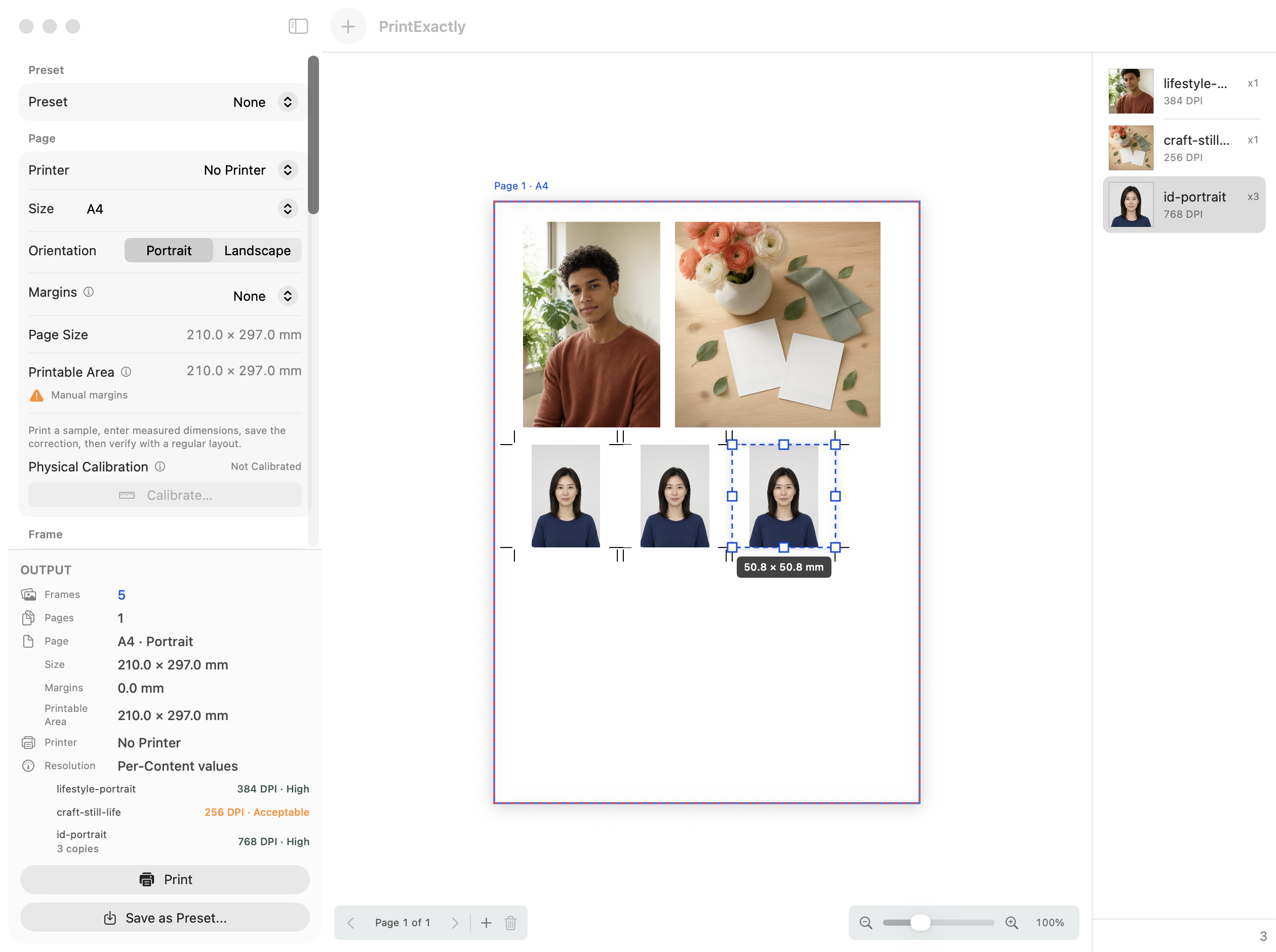
Direct answer. Choose the Page for the printer and paper you will actually use, set each Frame's physical width and height in inches, cm, or mm rather than pixels, then print at 100% through the macOS print panel with Scale to Fit off and measure one test print with a ruler.
Pick the Mac printer you will actually use and set the Page to a paper that printer reports — A4, US Letter, 4 × 6, or a stock from the printer's own media list. Borderless media shows up directly on the canvas because the page size menu matches the printer's real media list.
Set the Frame width and height in millimeters, centimeters, or inches, then place the photo, snap to guides, and set copies per item. Auto Arrange packs mixed sizes and copies across the sheet so different finished sizes can share one Page.
Read the per-item effective DPI, confirm nothing important sits outside the printable area, then print through the macOS print panel at 100% scale with Scale to Fit off. Measure one test print with a ruler before committing to the full job.
Practical guides
Each guide walks one job end to end, from Page choice to the final 100% print check.
Layout library
Start from 18 standard page presets — A3, A4, A5, A6, B4/B5, Letter, Legal, Tabloid, envelopes, and photo sizes — matched to the papers your printer actually reports, then combine finished sizes with custom measurements and add crop marks, bleed, spacing, or borders when the job needs trimming.
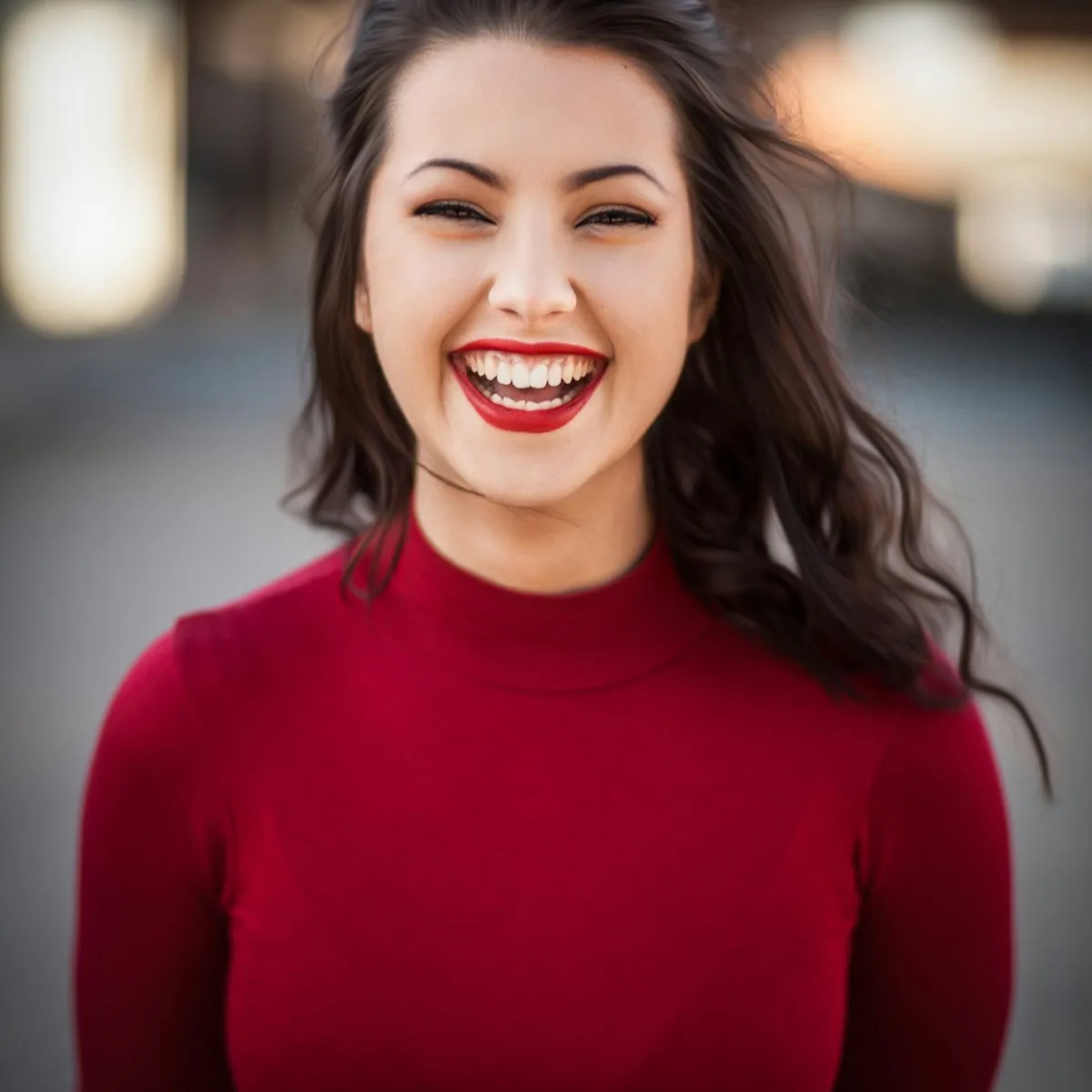

Passport, wallet, frame, school, scrapbook, and reference photos can share one page.
Add cut marks and bleed without losing sight of the final physical dimensions.
Save Page setup and Frame layouts as named presets, including a reusable single-page ID layout with multiple copies of an existing photo. Photos and Content adjustments like crop, fit, and rotation are not included, and applying a preset does not create copies. Applying a preset checks paper compatibility and clipping and warns when the layout may not fit. Read the reusable-layout preset guide.
Use cases
From wallet copies to scrapbook inserts, each photo keeps its own finished size while the whole sheet stays ready for trimming and printing.
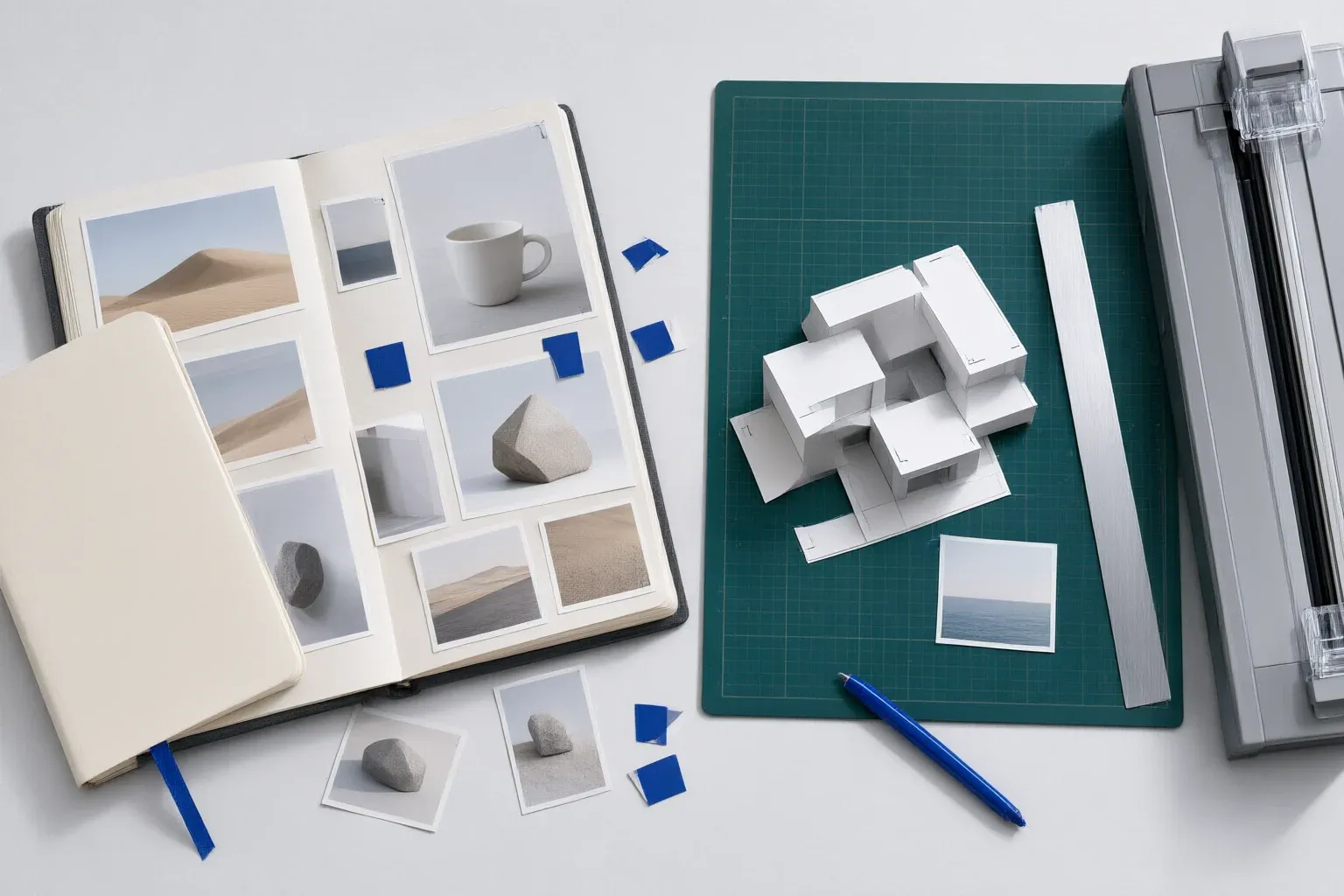
Print small photos at exact custom sizes, mix portrait and landscape images on one sheet, and add cut marks for clean trimming.
Lay out reference photos, miniature inserts, and custom-size craft images in millimeters, centimeters, or inches, with bleed and cut marks when needed.
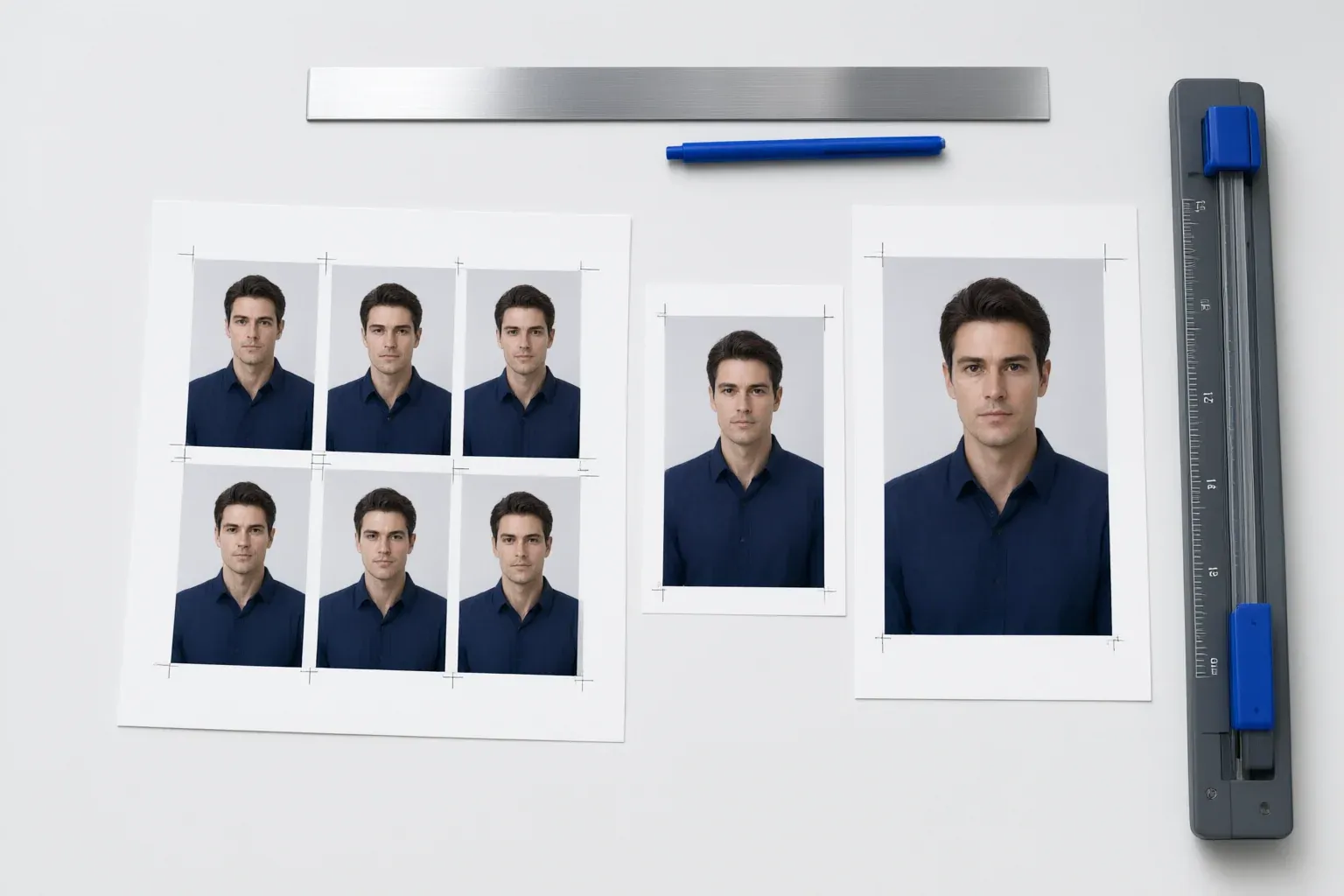
Print several wallet copies of the same portrait alongside 4 × 6 or 5 × 7 school photos without duplicating the source image.
Build mixed-size portrait packages, set copies per image, and check effective DPI and printer margins before output.
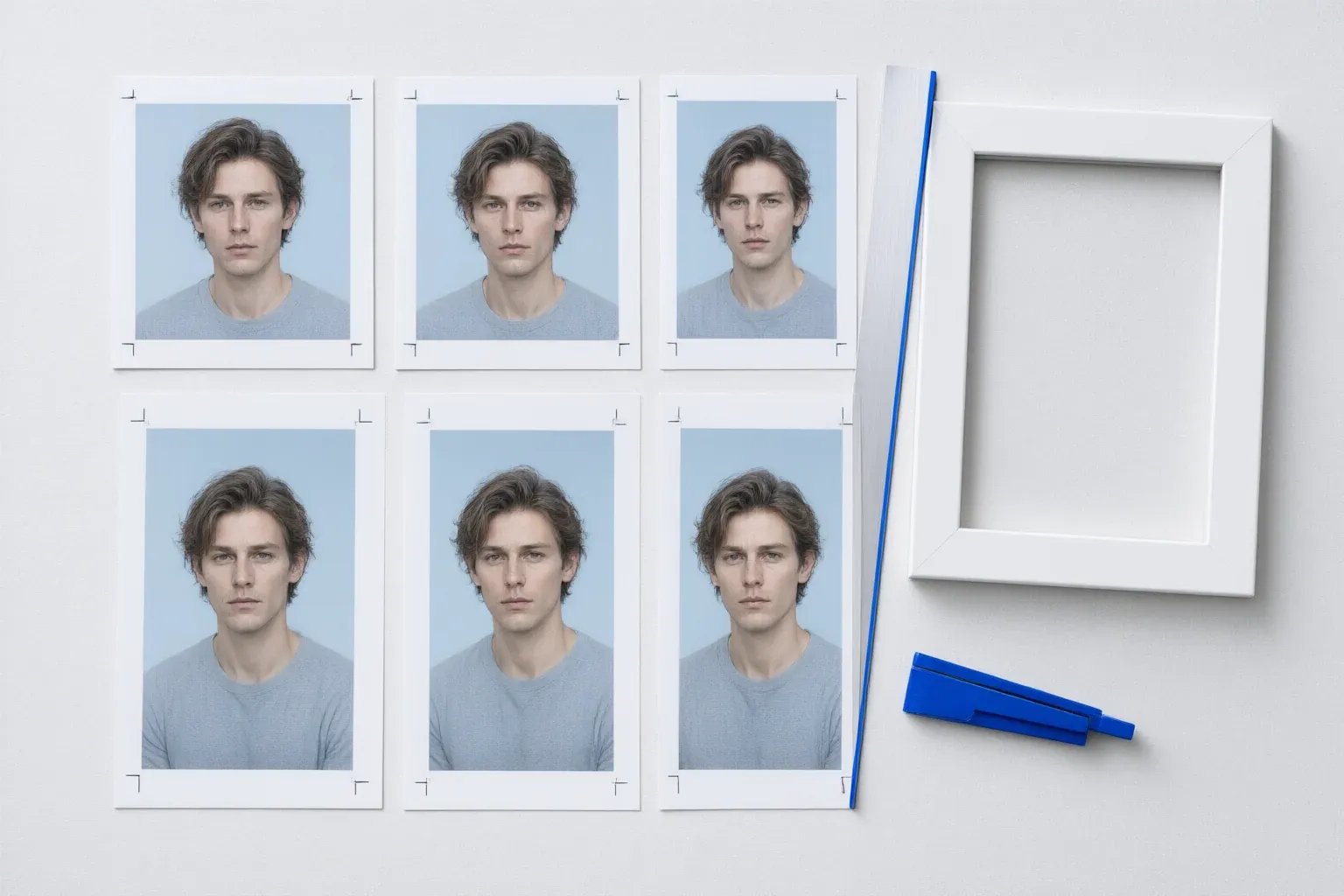
Set 4 × 6, 5 × 7, 8 × 10, or custom dimensions to match a measured frame opening, then review scaling before printing.
Lay out copies of an existing 2 × 2 in, 35 × 45 mm, or custom ID photo with cut marks. PrintExactly does not check government photo compliance.
Print the exact size
PrintExactly sets each Frame, checks the printable area, and prints through the macOS print panel at 100% scale.

Output checks
A correct Frame size can still fail when paper, printer margins, borderless mode, or driver scaling changes the output. PrintExactly matches the page menu to your printer's real paper list, draws the printable area as a red dashed guide on the canvas, and leaves driver-specific controls visible in the macOS print panel.
Some printers reproduce every layout slightly larger or smaller on a given axis, even with the paper matched and driver scaling off. PrintExactly saves an independent horizontal and vertical correction measured from a test Page, applied to printed Frames and Content, and can be enabled or disabled per printer at any time. See the printer calibration guide for the workflow, the 80–120% per-axis window, and the test-print measurement. Calibration cannot remove paper feed, mechanical, ink-spread, driver scaling, or borderless expansion tolerances — a ruler measurement of one test print is the final check.
Calibration workflow — the on-screen sequence, not a measurement of printed output:
Illustrative summary of the workspace readout — not printed measurements, and not a screenshot of the macOS print dialog.
The readout summarizes the active layout. The macOS print dialog is still the source of truth for output scale — keep it at 100% and turn off Scale to Fit.
Page is the paper size, orientation, margins, and the printer-reported printable area. Photo Frame is the finished physical position and size on the Page, including border, bleed, and cut marks. Image Content is the source pixel grid fitted or cropped inside a Frame. After this definition, the workspace shortens them to Page, Frame, and Content.
Four persistent Content Fit modes decide how Content behaves inside a Frame: Fit keeps every pixel inside the Frame; Crop to Fill fills the Frame edge to edge with a focal point; Fit Width matches Content width to Frame width; Fit Height matches Content height to Frame height. Fit Width and Fit Height scale Content proportionally to match the chosen Frame dimension without resizing the Frame, and they work alongside Content Alignment in both the canvas and the printed output.
Difference
Generic Mac print
PrintExactly
Choose by print task
These tools solve different print jobs. Pick the one whose input and finished output match yours.
Arrange several photos, mixed finished sizes, and copies on the same paper.
PrintExactlyTile a poster, map, blueprint, pattern, image, or PDF over multiple sheets.
Use PrintTilerMerge Excel or CSV rows into labels, name badges, and personalized documents.
Use PrintPiperFAQ
Short answers for the decisions that most often change real output.
Set the Frame width and height in millimeters, centimeters, or inches, arrange it on the real paper size, check the printable area and effective DPI, then print through the macOS print panel at 100% scale with Scale to Fit off. Read the exact-size printing guide.
Scale to Fit, a mismatched paper size, borderless expansion, or printer-driver scaling can change physical output. PrintExactly matches the page size menu to your printer's real paper list, and the macOS print dialog still shows 100% or Actual Size for the final check. Read the wrong-size diagnosis guide.
Only when the printer driver offers that paper as borderless. Borderless output depends on the selected printer and the loaded stock — a sheet that is borderless on one printer may be bordered on another, and borderless expansion is driver-dependent. PrintExactly picks the borderless stock from your printer's real media list, but the printed dimension can still shift, so a single test print and a ruler measurement are required when the dimension matters.
Yes. PrintExactly can place 2 × 2, wallet, 4 × 6, 5 × 7, 8 × 10, and custom-size photos together, with separate copy counts for each item.
Calibration prints a test Page, lets you measure the result, and saves an independent horizontal and vertical correction that is applied to printed Frames and Content. You can enable or disable it per printer at any time. After a successful sample the measured width and height fields start empty, and saving keeps the sheet open with the printer, both corrections, and the enabled or disabled state. The sample and any reprint stay uncorrected, so verify with a regular layout at 100% scale rather than the test Page. Resetting saved corrections asks for confirmation first. It compensates for consistent scaling drift on a given printer; it does not eliminate paper feed, mechanical, ink-spread, driver scaling, or borderless expansion tolerances, so a ruler measurement of one test print is still required. Read the printer calibration guide.
Fit Width matches Content width to the Frame width; Fit Height matches Content height to the Frame height. Both modes are persistent Content Fit choices. They scale Content proportionally to match the chosen Frame dimension without resizing the Frame, and they work alongside Content Alignment in both the canvas and the printed output.
Yes. Save Page setup and Frame layouts as named presets, update an existing preset or save a new one, then reuse it with other photos. Presets do not include photos or Content adjustments such as crop, fit, or rotation. When you apply one, PrintExactly checks current printer paper compatibility and clipping and warns if the layout may not fit; it does not switch the selected printer or resize the layout to fit. Read the reusable-layout preset guide.
On first launch, PrintExactly asks for your preferred unit — inches, centimeters, or millimeters. You can change the unit later from Settings. For the app language, choose Follow System, English, or Deutsch in Settings.
No. Selected photos are processed locally for layout and printing. PrintExactly does not require an account or upload photo content for layout processing.
Ready for output
Exact dimensions. One print-ready sheet. Made for Mac.